
Point of Care CNA Guide: How to Log In, Document ADLs, and Track Shift Tasks
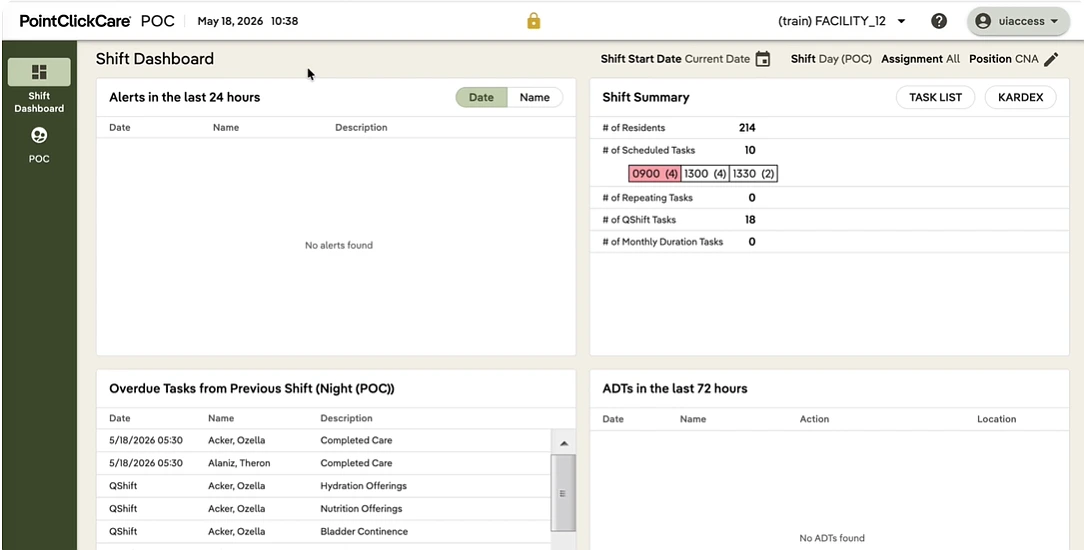
Point of Care is where your shift gets recorded. Every ADL you complete, every meal percentage, every change you notice in a resident goes in here, and what ends up on the screen is what the facility can prove happened.
This walks through the whole shift, from the login kiosk to the door icon at the end.
Logging in Takes Three Fields, And The Org Code is The One People Forget
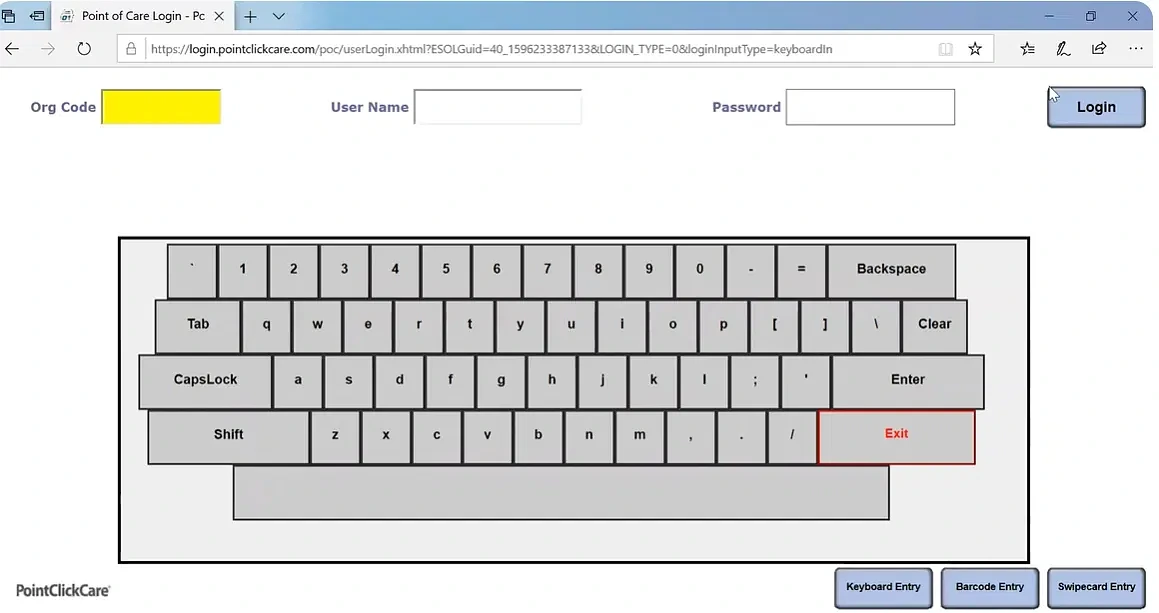
The login screen asks for Org Code, User Name and Password. Org code is highlighted for a reason. It identifies your organization, it is the same every time, and it is the field new staff most often leave blank.
On a wall-mounted kiosk you will usually see an on-screen keyboard. Along the bottom there are three entry options: Keyboard Entry, Barcode Entry and Swipecard Entry. Which one your facility uses depends on how it has been set up, and if you have a badge, swipecard is faster than typing on a touchscreen with wet hands.
Once you are in, you land on the POC Shift Dashboard.
Check The Facility, Shift And Date Before You Document Anything
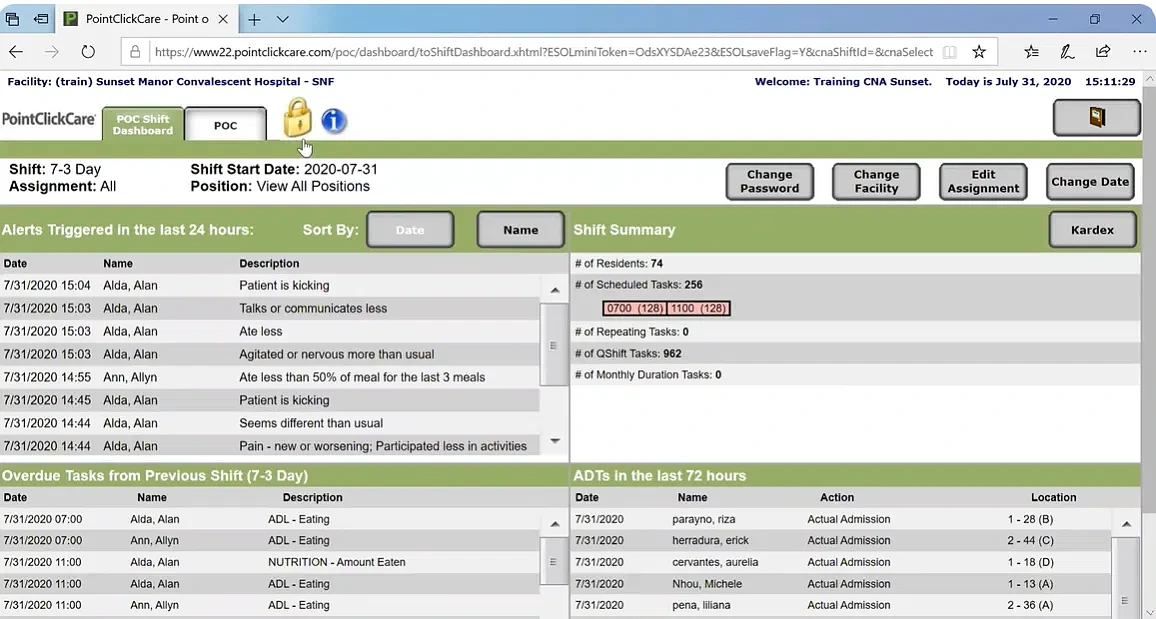
The dashboard header tells you where the system thinks you are: facility name, your name, today’s date and the current time. Under that sits your shift, shift start date, assignment and position.
Four buttons let you correct any of it.
- Change Facility, if you pick up shifts at more than one building. Documenting into the wrong facility creates a real mess to unwind.
- Edit Assignment, if you are covering a different unit or hall than the system has you down for.
- Change Date, for documentation you are entering after the fact.
- Change Password.
The 72-Hour Rule
You can only backdate documentation 72 hours. Past that, the system will not let you, and you need to go to your DSD to get it entered.
This is worth knowing before you need it. If you realize on Monday that something from Thursday never got charted, that is already outside the window.
The Gold Padlock Hides The Screen, It Does Not Log You Out
Somewhere in most shifts a family member walks up while resident data is on screen.
Click the gold padlock icon and the screen hides. It also signals to anyone passing that the kiosk is in use rather than free. Click the orange circle to bring it back.
Treat this as a curtain, not a lock. Anyone who knows to click the orange circle can uncover the screen, and that includes anyone who has watched a CNA do it. Hiding the screen is for stepping aside for a minute. Leaving the area means logging out properly.
There is a second reason to be deliberate about this. If the screen sits idle without saving, the system logs you out and unsaved documentation is gone. Not held, not recoverable. Save as you go rather than filling in three residents’ worth of information and then getting called away.
Red, Yellow And Green Tell You Where You Stand
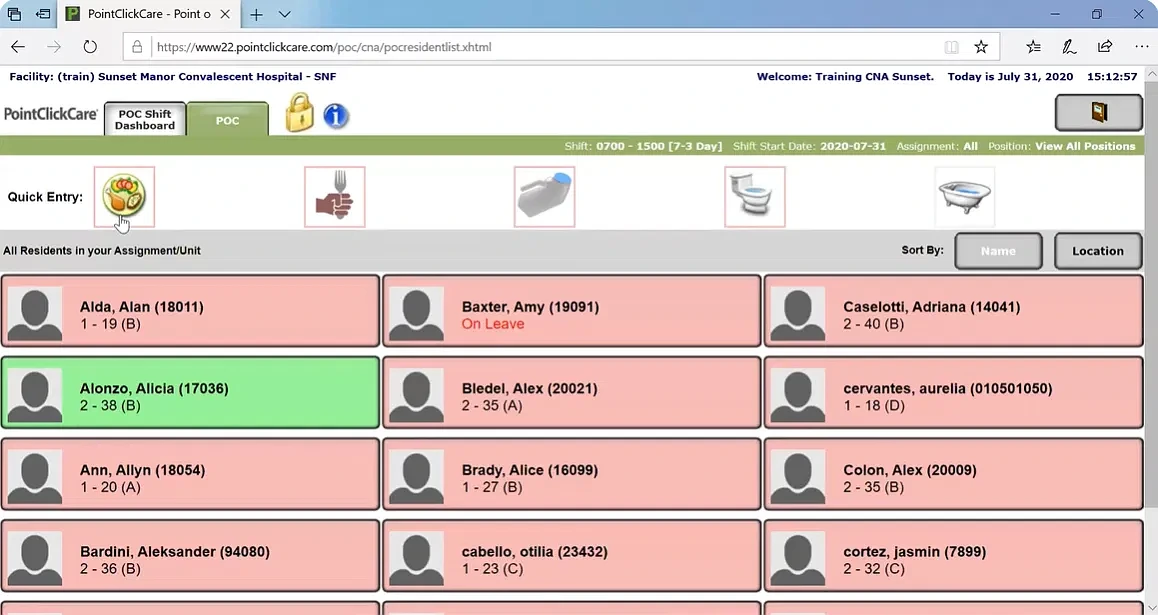
Click the POC tab to see your resident list. Every resident appears as a tile showing their name, resident ID and room and bed number, with unit shown in brackets.
The tile color is your task status at a glance.
- Red means documentation is overdue.
- Yellow means you are still inside the window to document.
- Green means it is done.
You will also see notes on the tile itself where they apply, such as On Leave under a resident’s name.
Tiles can be sorted by Name or Location. Location order tends to be more useful, since it matches the order you actually work down the hall.
Quick Entry Documents One Task Across Many Residents
At the top of the resident list is a row of picture icons: meals, feeding assistance, brief changes, toileting, bathing. This is Quick Entry, and it exists so you are not opening and closing thirty individual charts to record the same thing.
Select the icon for the task, and the resident list appears with the active resident highlighted in blue. Fill in the fields, then choose:
- Save & Next to record and move straight to the following resident.
- Save & Exit when you have finished the group.
Meal intake after breakfast is the obvious use. So is a round of brief changes.
Individual Documentation Happens On The Resident Dashboard
Click a resident tile to open their dashboard, which shows their tasks as tiles.
Filter them by All, PRN or Q-Shift depending on what you are working through.
Take an ADL such as bed mobility. Open the task, select the responses that match the care tips you gave, update the service timestamp to the time it actually happened rather than the time you are charting it, and click Save. The tile turns green.
Adding a Second Entry, And Fixing An Error
Both of these come up constantly and neither is obvious.
To add another entry to a task you already completed, open the task and click New Entry at the bottom. You would do this if a resident needed the same care twice in a shift.
To correct something charted wrongly, find the task, click Strike Out, and choose the reason. The original entry stays visible with a line through it, which is how clinical records are supposed to work. Nothing gets deleted, and that is deliberate.
Residents Who Are Out Of The Building Get a Batch Update
When a resident goes to the hospital or leaves the facility, POC marks them unavailable, and their remaining shift tasks are still sitting there needing an answer.
Open the resident and select Resident Not Available. That clears all their outstanding tasks for the shift in one action rather than making you open each one.
Every tile on your list should be green before your shift ends. Red tiles roll forward and appear in the next shift’s Overdue Tasks section, where they become somebody else’s problem and, eventually, a conversation.
Alerts Go in The System And Out Loud
If you notice a change in a resident’s condition, open their dashboard and click New Alert.
The Stop and Watch list appears. Tick whatever applies. The alerts you will see on the dashboard afterward are the plain-language kind: ate less, talks or communicates less, agitated or nervous more than usual, seems different than usual, participated less in activities.
If what you observed is not on the list, choose custom alert, type what you saw, and save.
Then tell the nurse. Verbally. Immediately.
Charting an alert is not the same as reporting it. The system captures the record. It does not guarantee anyone reads it in the next ten minutes, and a change in condition that matters cannot wait for someone to check a dashboard. Every manually triggered alert in POC gets spoken out loud to the nurse as well.
Log Out With The Door Icon
The door icon sits in the top right corner. Click it at the end of your shift, and any time you are leaving the kiosk for more than a moment.
Not the padlock. The door.
Things Worth Knowing That Make The Shift Smoother
The dashboard also carries information most CNAs never look at and probably should.
Shift Summary shows your resident count, total scheduled tasks, and how those break down by time block. Seeing 128 tasks due at 0700 and 128 at 1100 tells you how the shift is shaped before it starts.
Overdue Tasks from Previous Shift shows what came across to you unfinished.
ADTs in the last 72 hours lists admissions, discharges and transfers, which is how you find out you have a new resident before you walk into their room.
Kardex gives you the care summary for a resident, which is worth opening for anyone new to your assignment.
Document as you go rather than at the end. Everything in this system is built around timestamps and windows, and a shift charted in the last twenty minutes is both harder to do accurately and easier to spot later.